How to trade on Mamba
Trading on Mamba is simpler than it looks. This guide walks you through your first trade, screen by screen, starting on the demo account so your money is never at risk.
- Practise on the demo account
- Pick an asset
- Set the amount and time
- Tap Buy or Sell
- Follow the result
- Need help?
Practise on the demo account
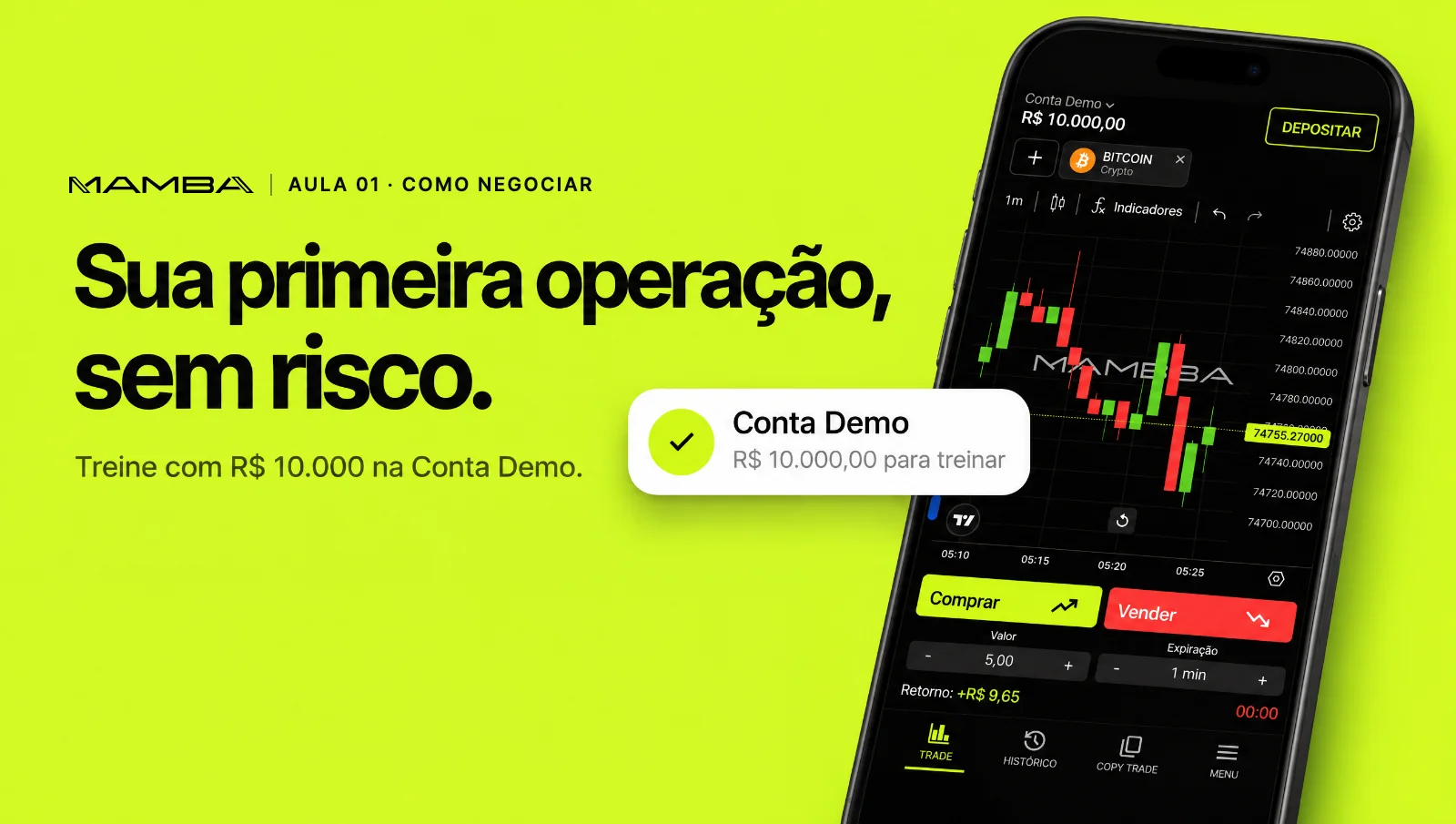
Every new account comes with a demo account (Conta Demo), a virtual balance of R$ 10,000 to practise with. It works just like the real account: same assets, same chart, same buttons. The only difference is that the money isn't real.
The name and balance of the account in use sit at the top of the screen.
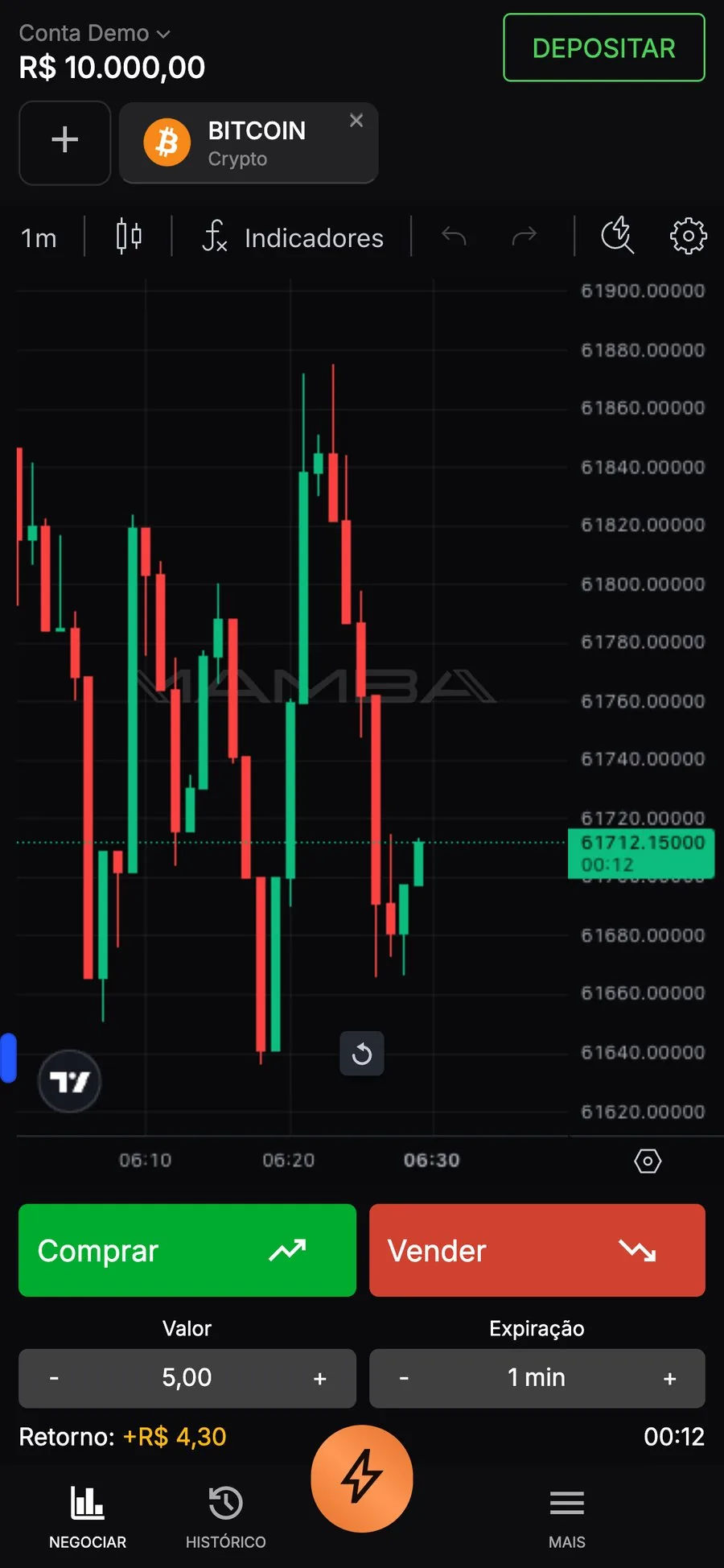
The account name and balance sit at the top of the screen.
Tap the account name to open the Trading accounts screen (Contas de Operação). Your main account (Conta Principal) is tagged REAL and the demo account is tagged TREINO (practice). Tap the account you want to use.
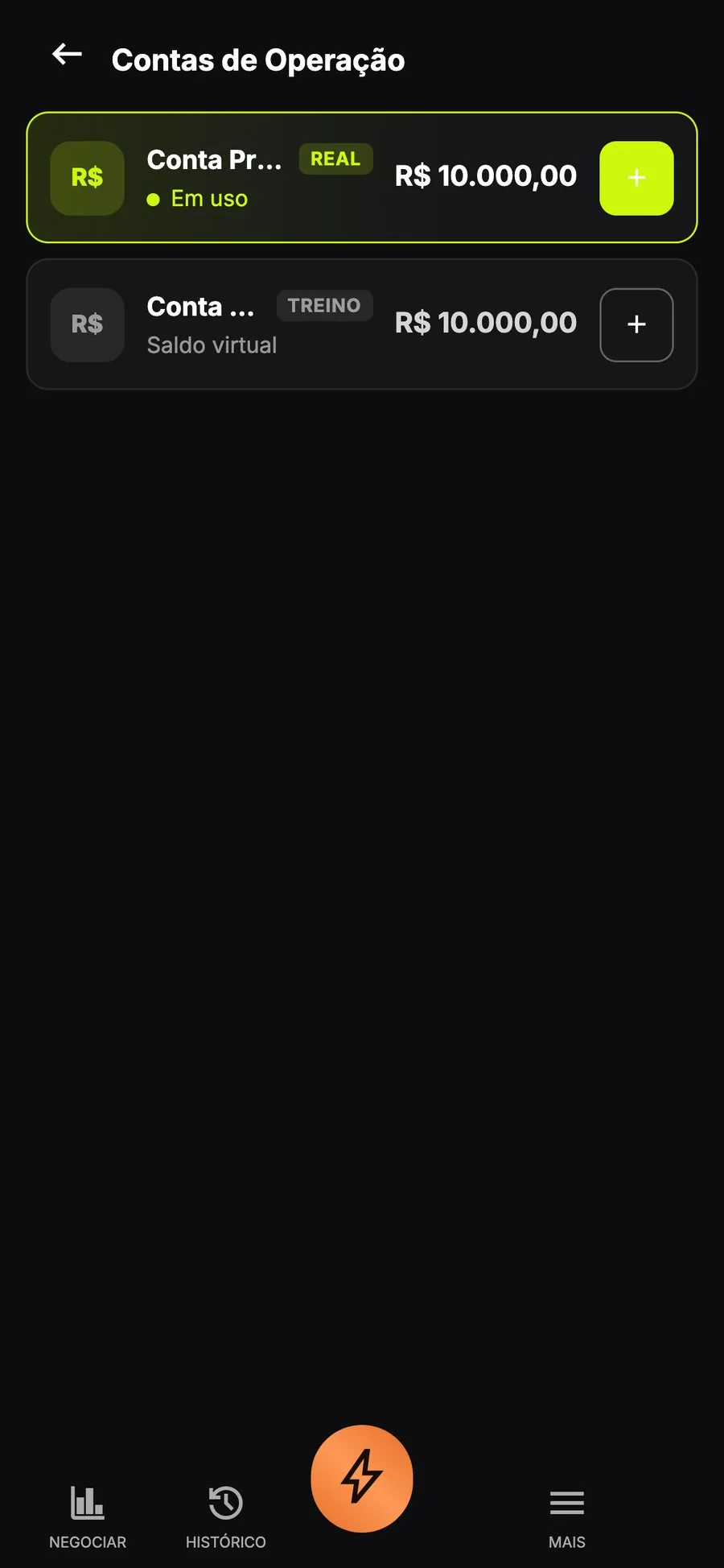
On Trading accounts, the demo account is tagged TREINO, with a virtual balance.
Pick an asset
Tap the + next to the open asset. The Choose an asset screen (Escolha um ativo) lists everything you can trade, with a search bar at the top and the tabs Favourites, All, Crypto and Currencies (Favoritos, Todos, Cripto, Moedas).
Each asset shows its profit percentage (Lucro). Tap the star to save an asset to your Favourites.
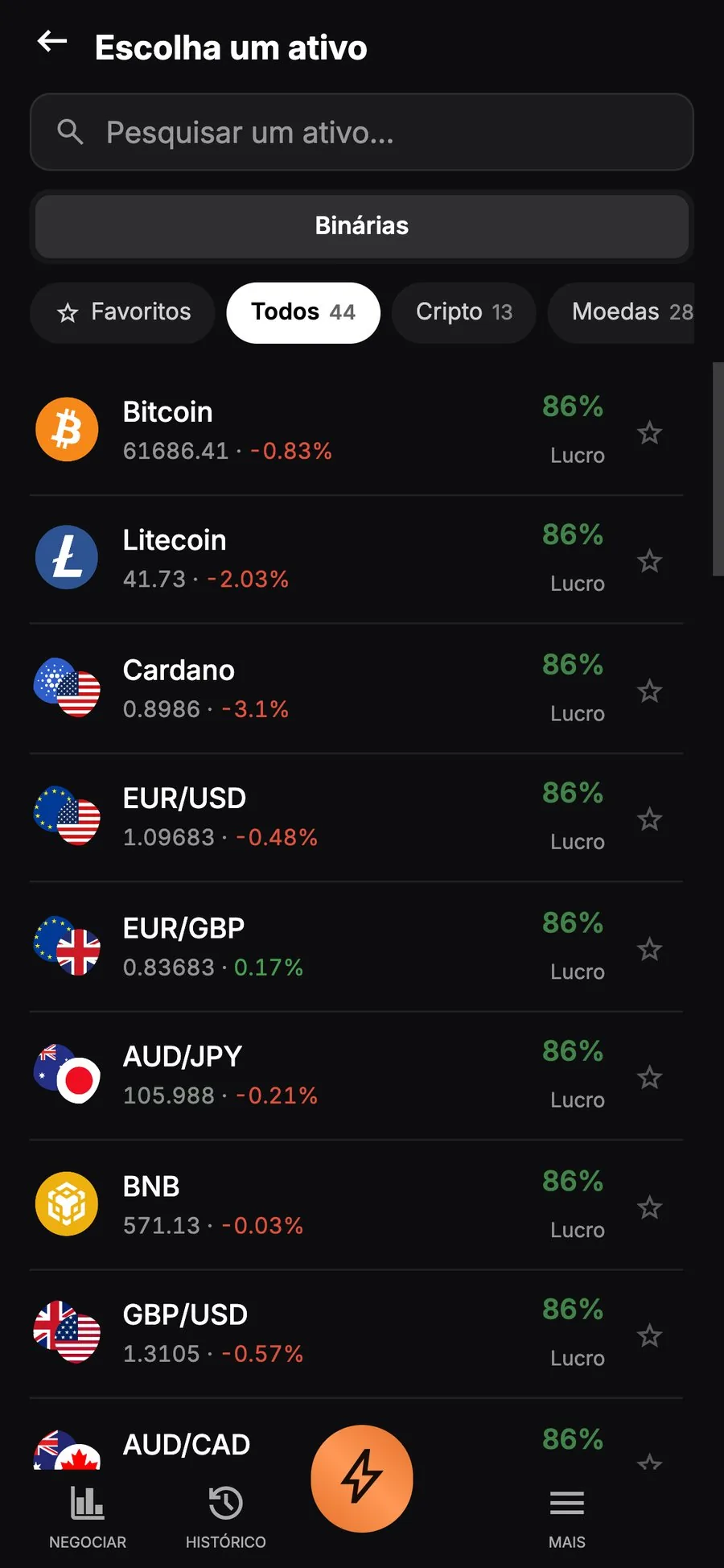
On the Choose an asset screen, tabs split crypto and currencies.
Set the amount and time
Below the trade buttons there are two fields:
- Amount (Valor): how much you want to put in the trade. Use - and + to adjust it.
- Expiry (Expiração): how long the trade lasts, such as 1, 5 or 15 minutes.
Just below, the Return line (Retorno) shows how much you can receive before you confirm.
Amount, Expiry and Return sit right below the buttons.
Tap Buy or Sell
With the asset, amount and time set, choose:
- Buy (Comprar, green): when you expect the price to finish above the entry point.
- Sell (Vender, red): when you expect it to finish below.
The trade opens right away and is marked on the chart.
The Buy and Sell buttons open the trade right away.
Follow the result
When the time runs out, the result goes straight to your balance. To see the details of each trade, tap History (Histórico) in the bottom bar. Each line shows the asset, the time, the amount and the result.
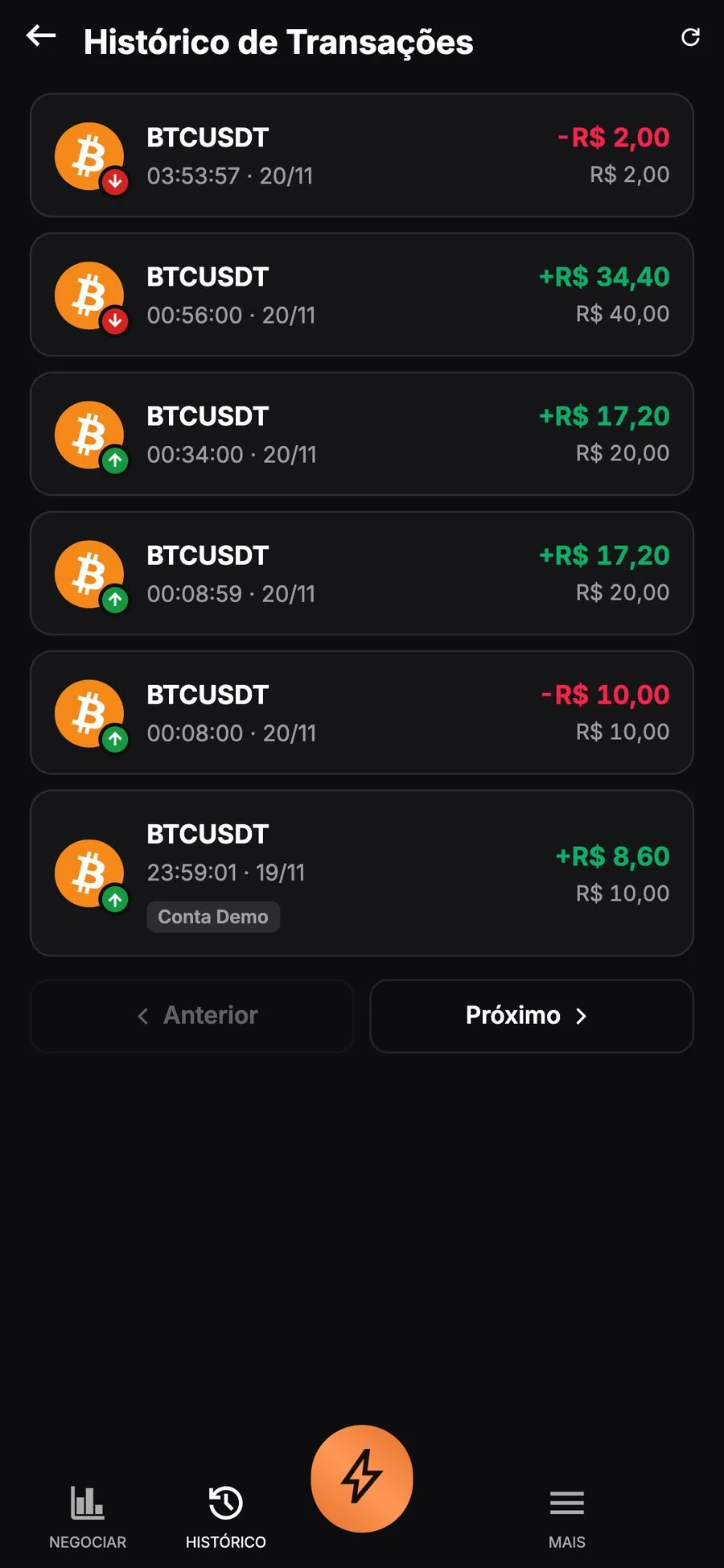
In History, each trade shows the amount and the result.
Start on the demo account and only move to your main account once you're comfortable with the buttons.
Need help?
Tap More (Mais) in the bottom bar, then Support (Suporte). Support is in Portuguese.
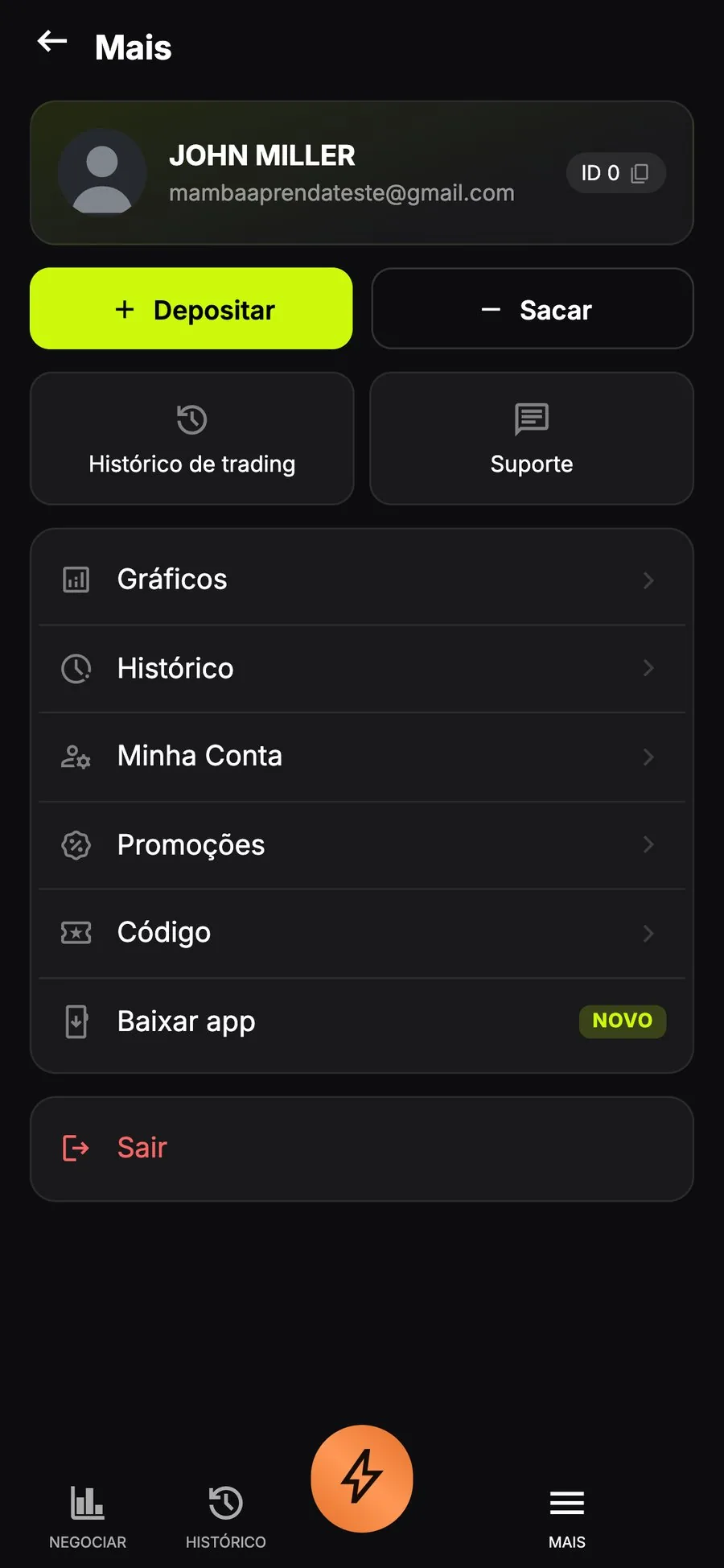
Support is in the More menu.